When using videos in MagicINFO, it is essential to optimise them for efficiency and minimal storage usage. HandBrake is a powerful tool that allows you to adjust your videos to the right quality and size. HandBrake converts and/or crops your movies.
What HandBrake does
HandBrake takes videos you already have and makes new ones that work on your mobile phone, tablet, TV media player, game console, computer, or web browser—nearly anything that supports modern video formats.
HandBrake works with the most common video files and formats, including ones created by consumer and professional video cameras, mobile devices such as phones and tablets, game and computer screen recordings, and DVD and Blu-ray discs.
HandBrake leverages tools such as Libav, x264, and x265 to create new MP4 or MKV video files from these Sources.
HandBrake does:
- Convert nearly any video to MP4 or MKV
- Crop and resize the video
- Restore old and low-quality video
- Remove combing artefacts caused by interlacing and telecine
- Pass-through audio without conversion for certain audio types
- Downmix discrete surround sound to matrixed surround or stereo
- Adjust audio volume levels and dynamic range for certain audio types
- Preserve existing subtitles, and add or remove soft subtitles (subtitles stored as text)
HandBrake can also make smaller videos—taking up less storage space on your device—than the originals.
How to use Handbrake:
Step 1. Install the application.
Step 2. Open the application.
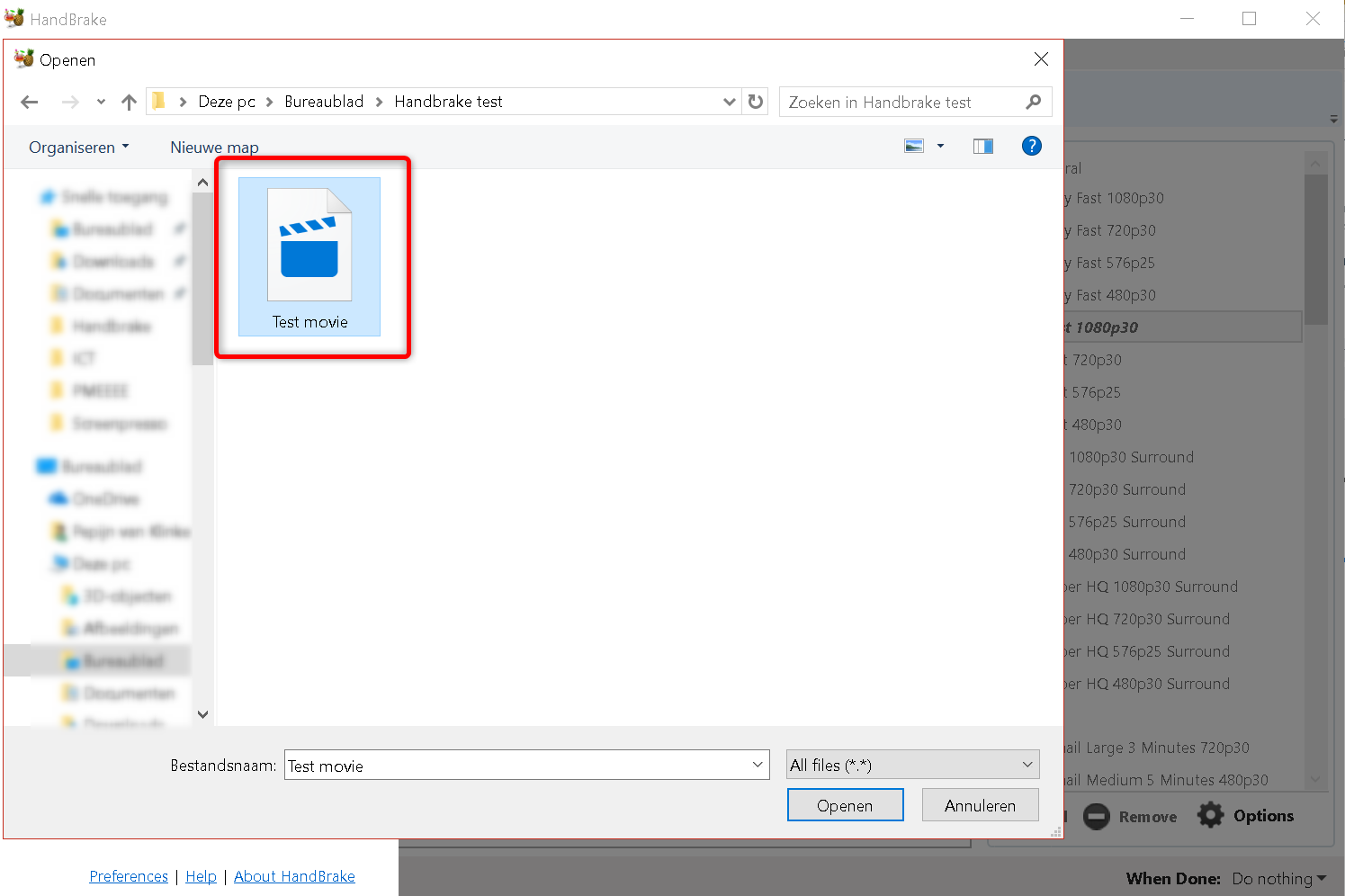
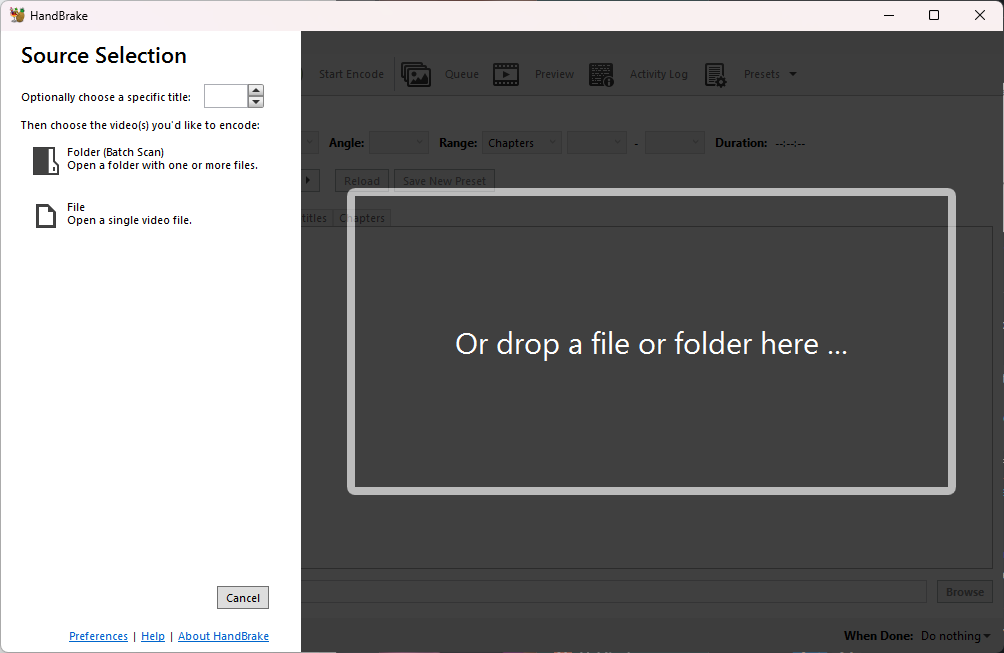 Step 3. Find the movie file you want to edit.
Step 4. Select a destination folder, and rename the file.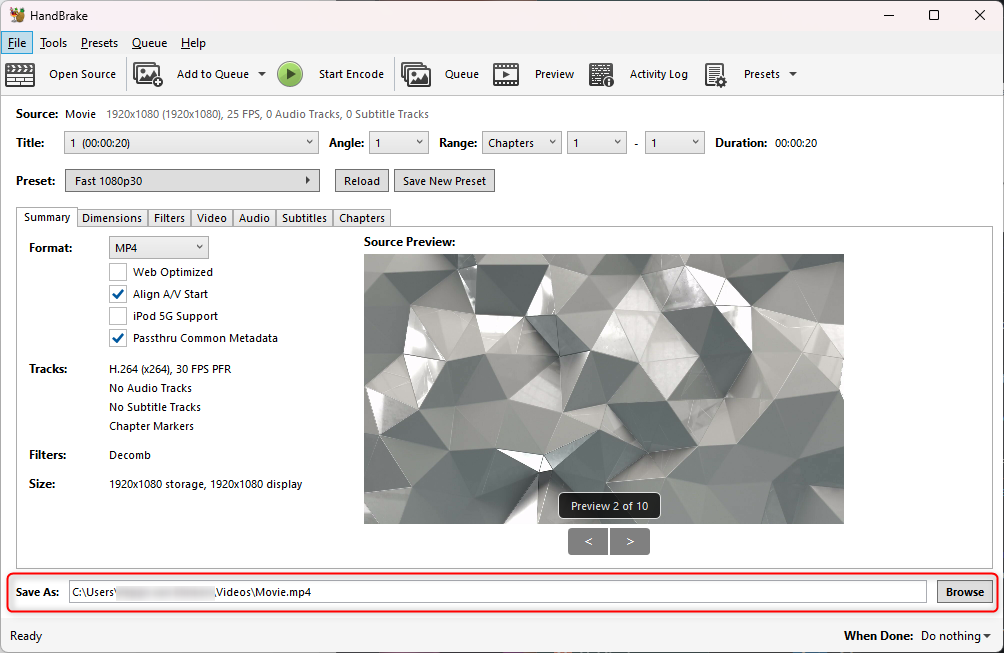
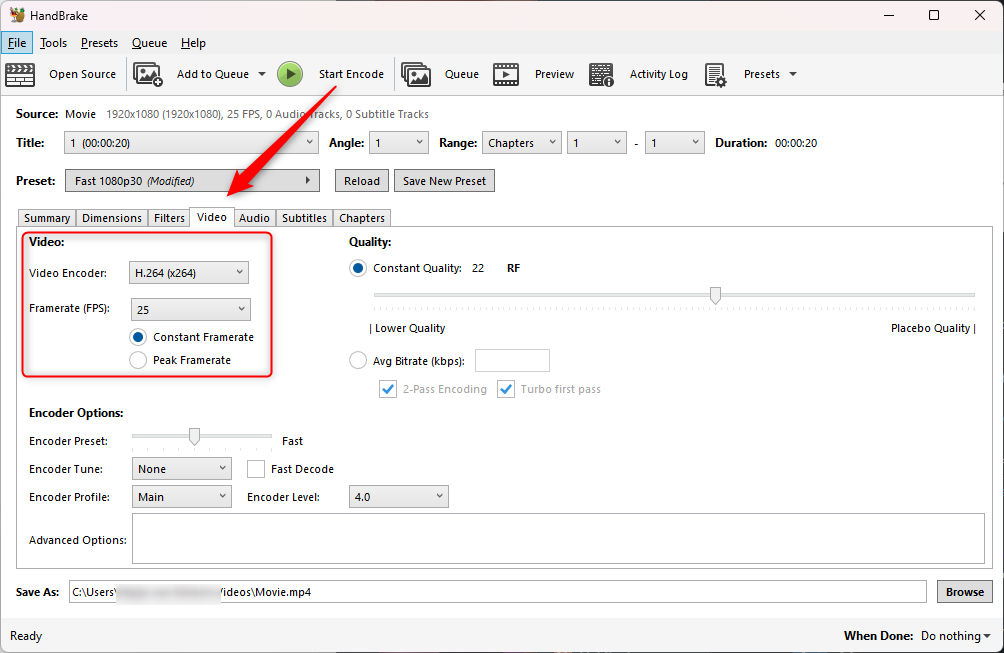
Step 5. Adjust the output values in the tab Video
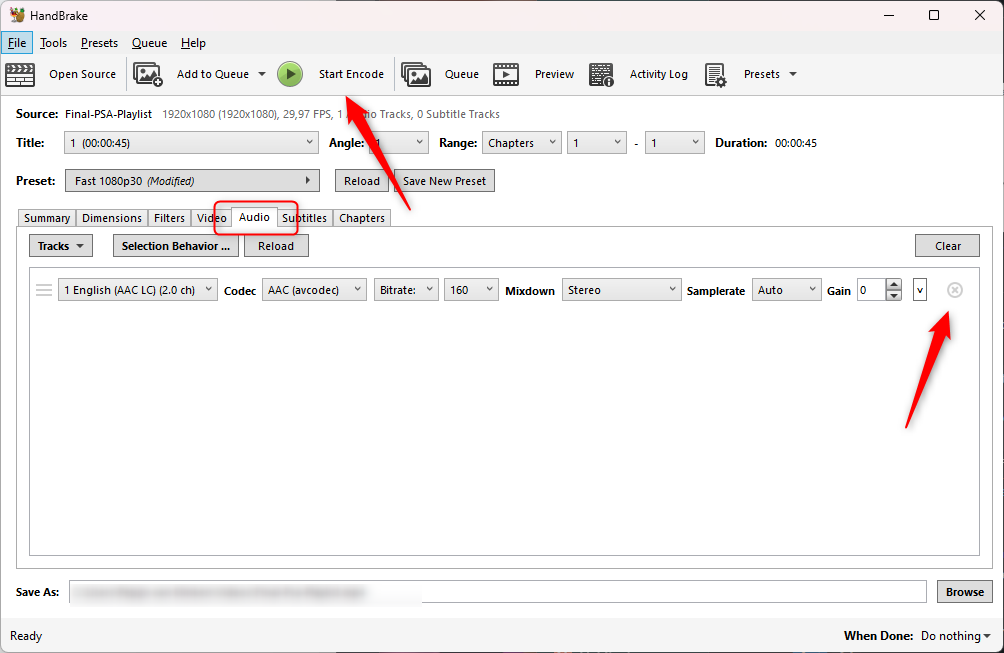
Step 6. You can simply delete the audio from the file when you know you are not using the audio.
Step 7. Now you see the differences between the two files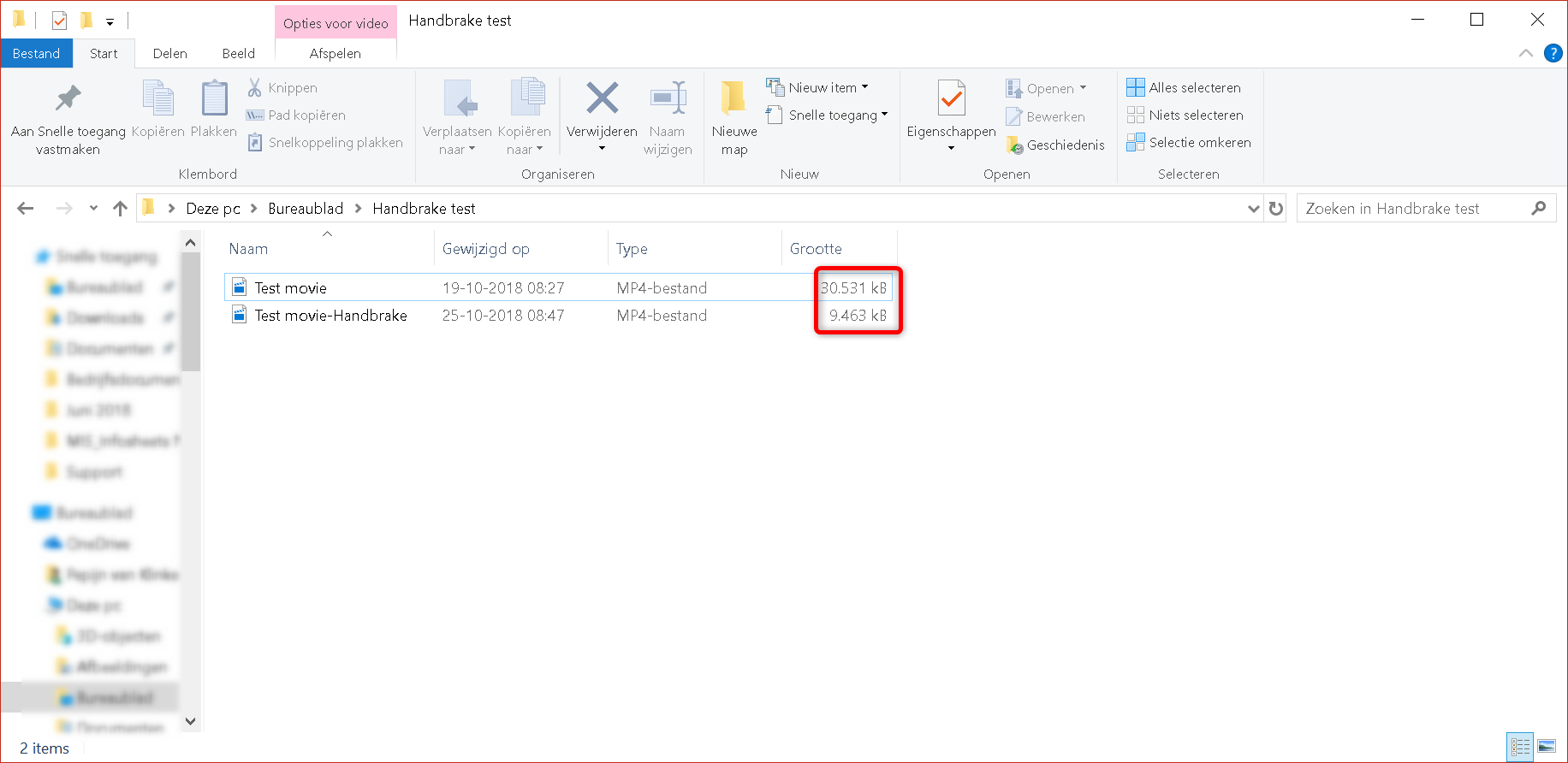
Comments
0 comments
Please sign in to leave a comment.