It is possible to configure a screen to utilise its various sources alongside MagicINFO.
For instance, suppose you have a device configured in a meeting room. When the device is idle, it displays the content from MagicINFO. However, during a meeting, if someone wishes to share content from their device, they can connect via HDMI, and the device will automatically switch to the HDMI source. Once the HDMI connection is disconnected, the display will revert to showing the content from MagicINFO.
Please follow the instructions below to find out how you can set this up.
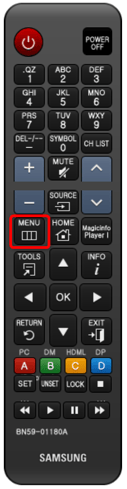
Step 1. Press Menu on your remote.
Step 2. Go to System and Auto Source Switching.
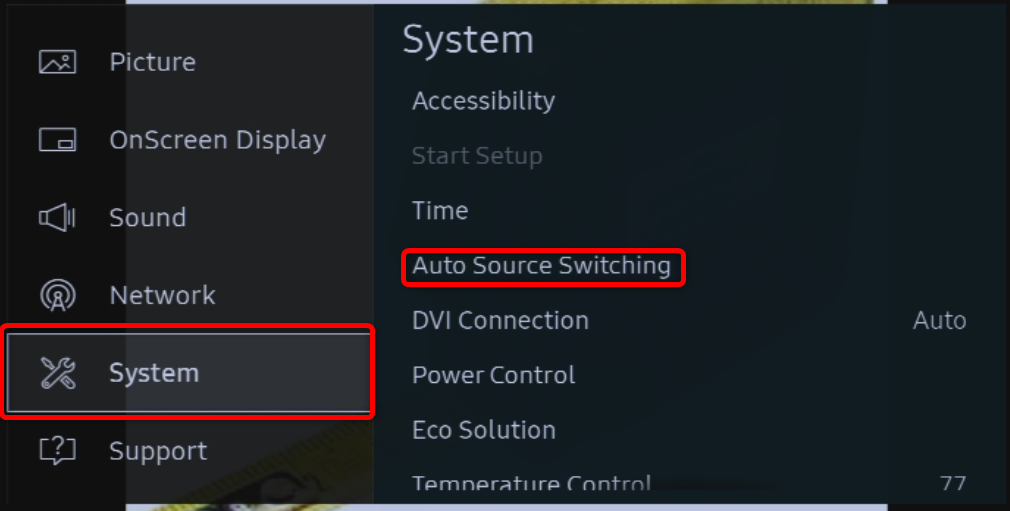
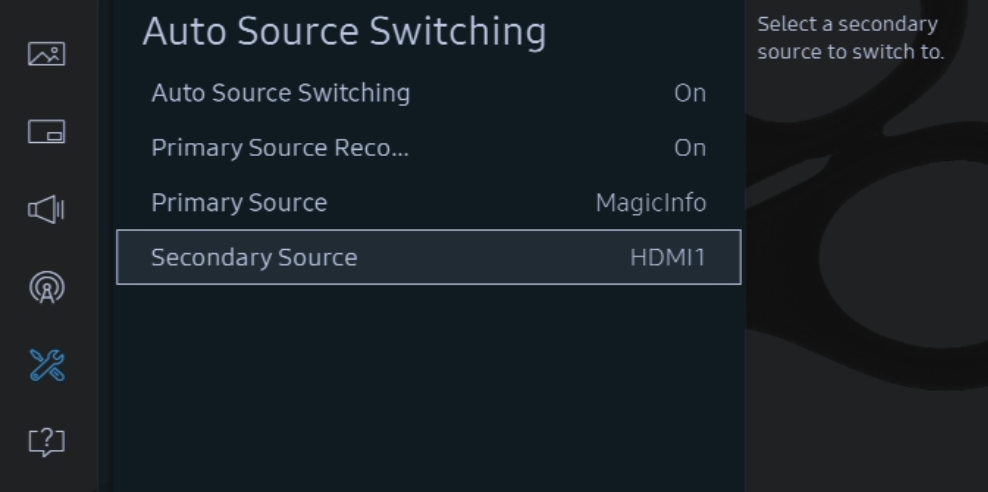
Step 3. Turn Auto Source Switching to Preset Input or ON (depending on device).
In this example, we have set the Primary source to MagicINFO and the secondary Source to HDMI.
It is also possible to set this up with MagicINFO.
Step 1: Log in and go to your devices, select the correct device and click on the I icon.
Step 2: Select the edit option
Step 3: Go to the tab Display control and select View More, then adjust your Auto source switching options.
Video Tutorial:
Comments
0 comments
Please sign in to leave a comment.