Follow the steps below to update your current installation.
When coming from an older version, it's a good idea to check if starting over would be more efficient. If there aren't many users or screens connected to MagicINFO, it might be better to do a fresh installation.
NOTE: Before upgrading or installing, make sure to have a good backup or snapshot of your current installation.
Please double-check if your server or computer meets the latest system requirements recommended by Samsung.
You can find the latest installers on our website. These are the newest versions of MagicINFO that we have tested.
https://www.magicinfoservices.com/magicinfo-software-download/
Please find below the guide that explains how to perform a basic (fresh) installation.
The steps below will show an upgrade from V7 to V8.
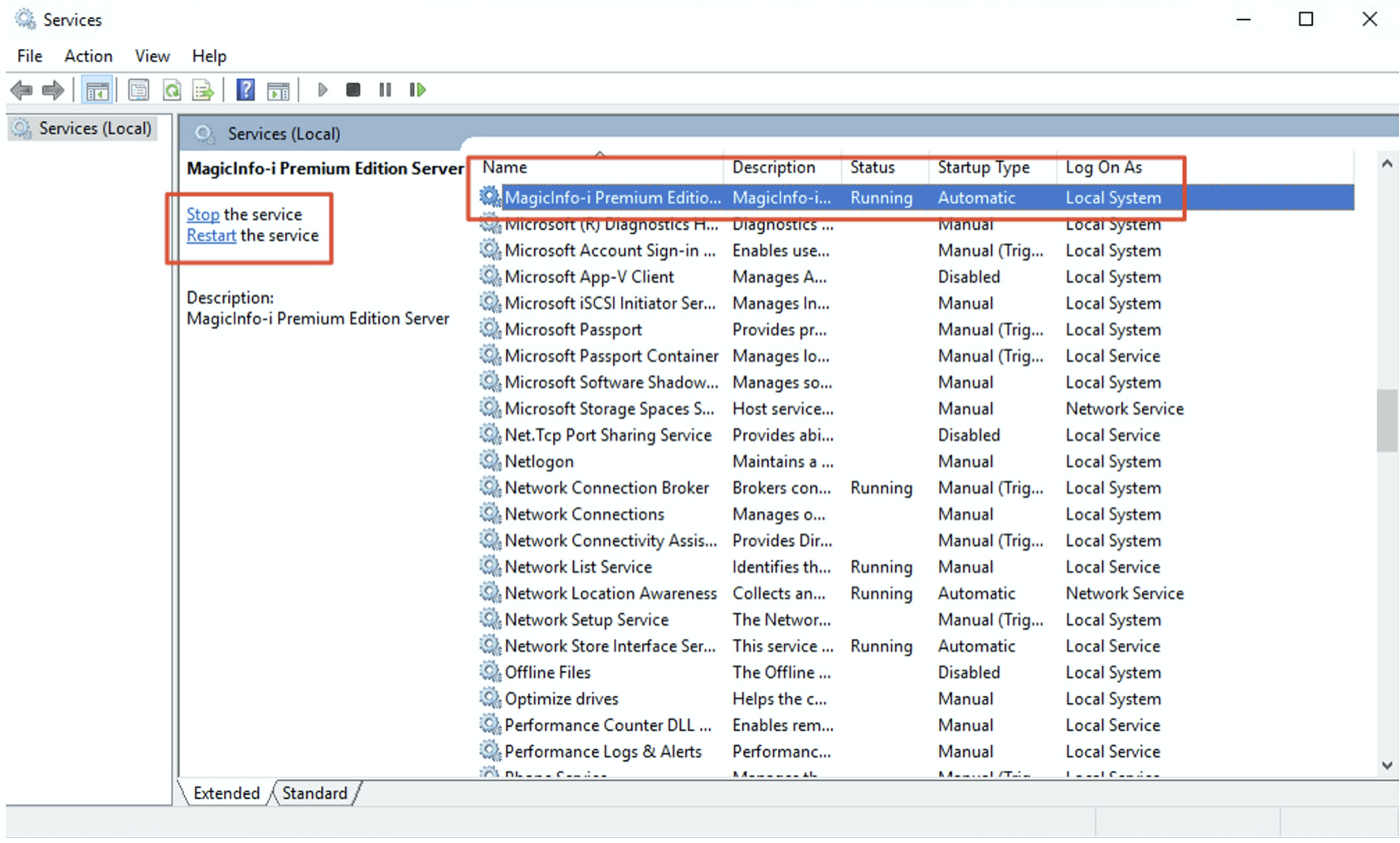
Step 1. Stop the MagicINFO service on your server/ computer.
- Press the Windows icon and open the Services program
- Type: MagicINFO
- Stop the services
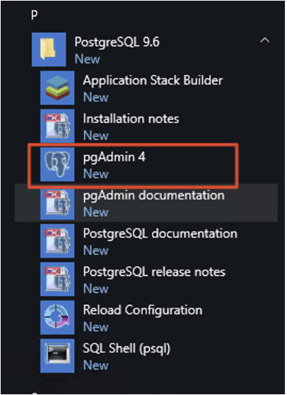
Step 2. Open PGAdmin.
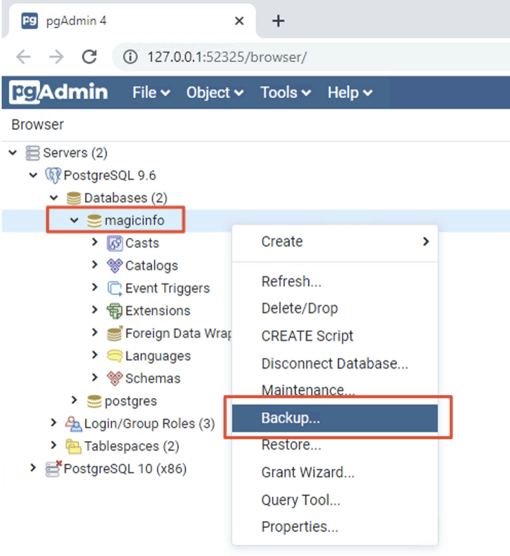
Step 3. Use the initial database password that is used during the first installation and open the folders, right-click on the magic info database. Choose Backup.
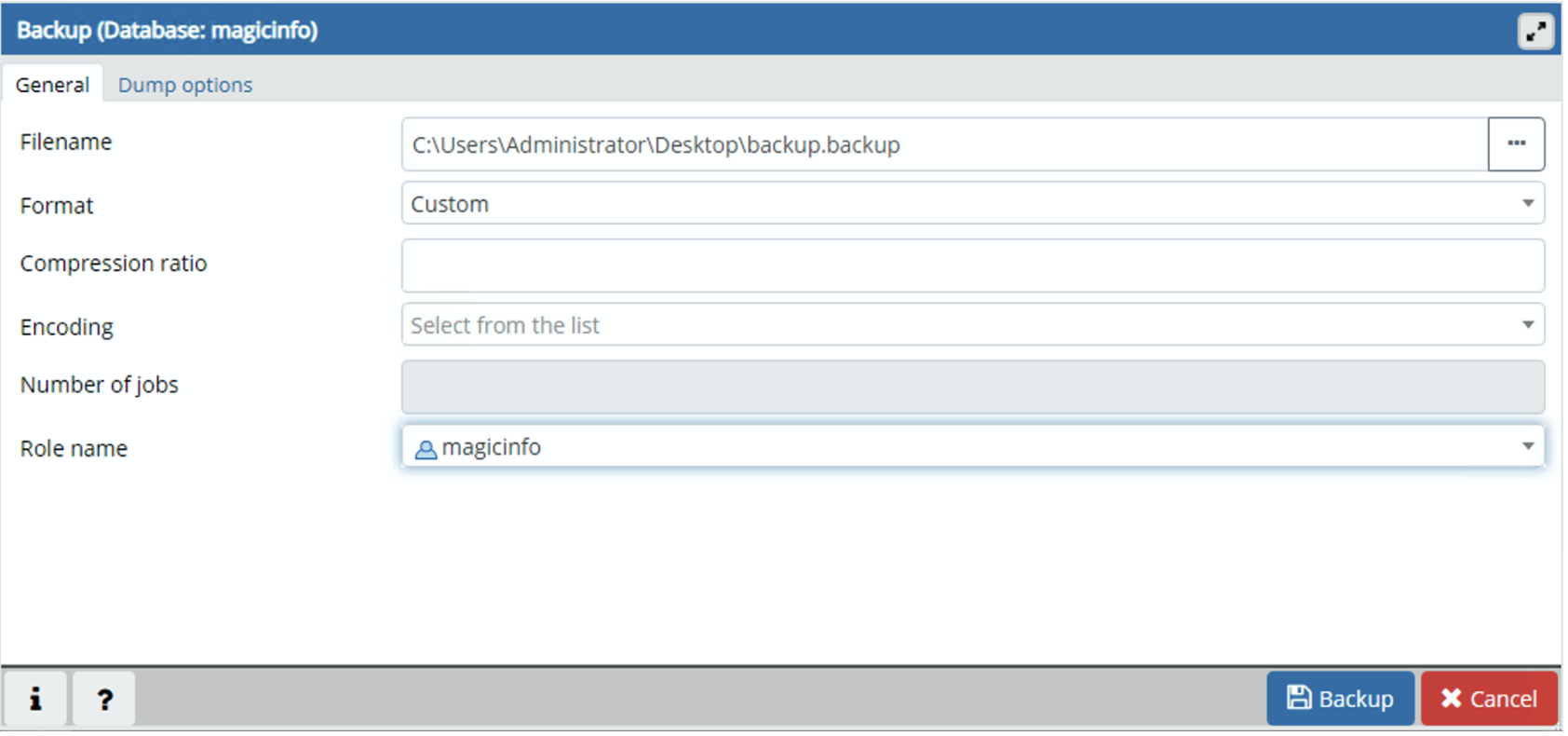
Step 4. Fill in the information and click Backup.
Step 5. Open Windows Explorer and copy the following folders to a backup location:
- C:\MagicInfo Premium\conf
- C:\MagicInfo Premium\runtime
- C:\MagicInfo Premium\tomcat
Step 6. Run the MagicINFO installer. You just need to click Proceed.
After running the installer, you can verify if the services are running again in the Windows Services application. Please note that while the services may indicate they are running, it may take some additional time for MagicINFO to be fully operational (approximately 10 minutes).
If everything went smoothly, you should be able to open MagicINFO again and see all settings as they were before.
Video Tutorial:
Comments
0 comments
Please sign in to leave a comment.